How to make a meme online
Choose a meme format, write readable captions, use your own photo and export a watermark-free image. A practical guide to the ilovecollage meme editor.
 ilovecollage
ilovecollage
A caption needs enough contrast, enough room and a clear reading order. Font choice comes after those decisions.
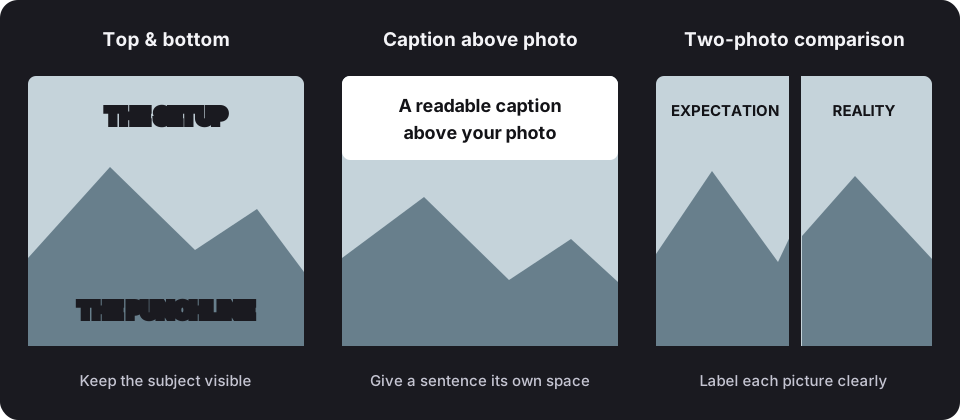
Top-and-bottom text gives the setup and punchline separate positions. Caption Above Photo reserves a clean area for a sentence. Expectation vs Reality provides a label for each picture. In the Memes panel, select the layout and open Edit captions to replace its numbered fields.
White letters with a dark outline can work across a varied photo. A background box works well over a very busy image. In appearance settings you can style all captions together or the selected caption only. Compare the result against both the light and dark areas behind the text.
If a caption needs many lines to fit a small panel, remove words that the image already explains. Tiny text is hard to read when the image is shared in a chat or feed. Keep related labels similar in length, and leave room between the words and the edge of the panel.
Write a setup that the punchline can answer. Two Buttons captions should describe the competing choices, with the lower caption identifying the decision-maker. In a classic meme, the top line is read before the bottom. Caption swapping can change the joke, so review the preview after using Swap or Reverse.
PNG is a useful first choice for lettering and flat colors. The output size is shown in the export dialog. A larger canvas does not repair a blurry source photo, and a very small downloaded file may make the text look soft. This tool adds new editable text; it does not automatically remove text that is already baked into an uploaded image.
Choose a meme format, write readable captions, use your own photo and export a watermark-free image. A practical guide to the ilovecollage meme editor.