How to make a photo collage online
Make your first collage with ilovecollage: add photos, choose a layout, adjust crops, style the canvas and export a free image without an added watermark.
 ilovecollage
ilovecollage
Put two pictures next to each other for a comparison, or arrange a set of photos in a grid. ilovecollage exports the whole canvas as one image.
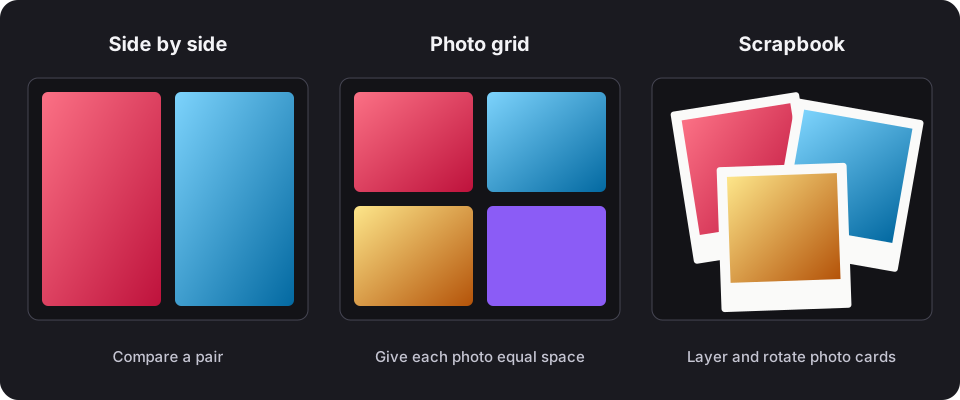
Two square pictures in equal side-by-side cells fit a wide canvas better than a tall one. If your subjects are vertical portraits, a square or landscape canvas can give them more room. Use the canvas size menu to compare the preview before exporting.
The layout keeps each photo in its own cell; it does not blend the boundary or stitch a panorama. Use a visible gap when you want to make the separation clear.
Fill makes every cell look complete by cropping parts of the source image. Drag within the photo to decide what remains visible. Fit preserves the whole photo, which is useful for screenshots, documents and product images, but can leave background visible around it.
Choose a layout that matches the photo count, up to ten. An equal grid suits a product collection; a larger hero cell suits a main photo plus supporting details. Adjust spacing and background consistently across the composition.
Use PNG for screenshots or images with text, and JPEG for a compact photo collage. Review the exported dimensions in the dialog. To change the arrangement later, also save an editable .collage project.
Make your first collage with ilovecollage: add photos, choose a layout, adjust crops, style the canvas and export a free image without an added watermark.
Create a square, portrait or story collage using ilovecollage canvas presets. Check crops, text placement and export dimensions before sharing your image.
Choose collage pixel dimensions for your print size, understand 300 PPI, use the A4 preset and avoid blurry photos when exporting from ilovecollage.
Arrange photos freely, layer frames and stickers, and add readable text. Make a digital scrapbook or mood board with ilovecollage and save an editable copy.